Build the form visually in Form UI
Form UI shows the form the way customers see it and lets you change it in place. It edits the same settings as the Config pages. Nothing is written until you click Save, and saving publishes the form to your website.
Before you start
- Form UI needs no subscription to open. Without one, custom fields, the address search settings, attachments and everything on the Response screen are locked.
- Custom fields are read live from AroFlo with the form's AroFlo credential, so the account needs one. See AroFlo credentials.
Step by step
-
Open your form from Forms and click Form UI at the top right. A form opens in Config until you have used Form UI on it in this browser. After that it opens in whichever editor you used last.
-
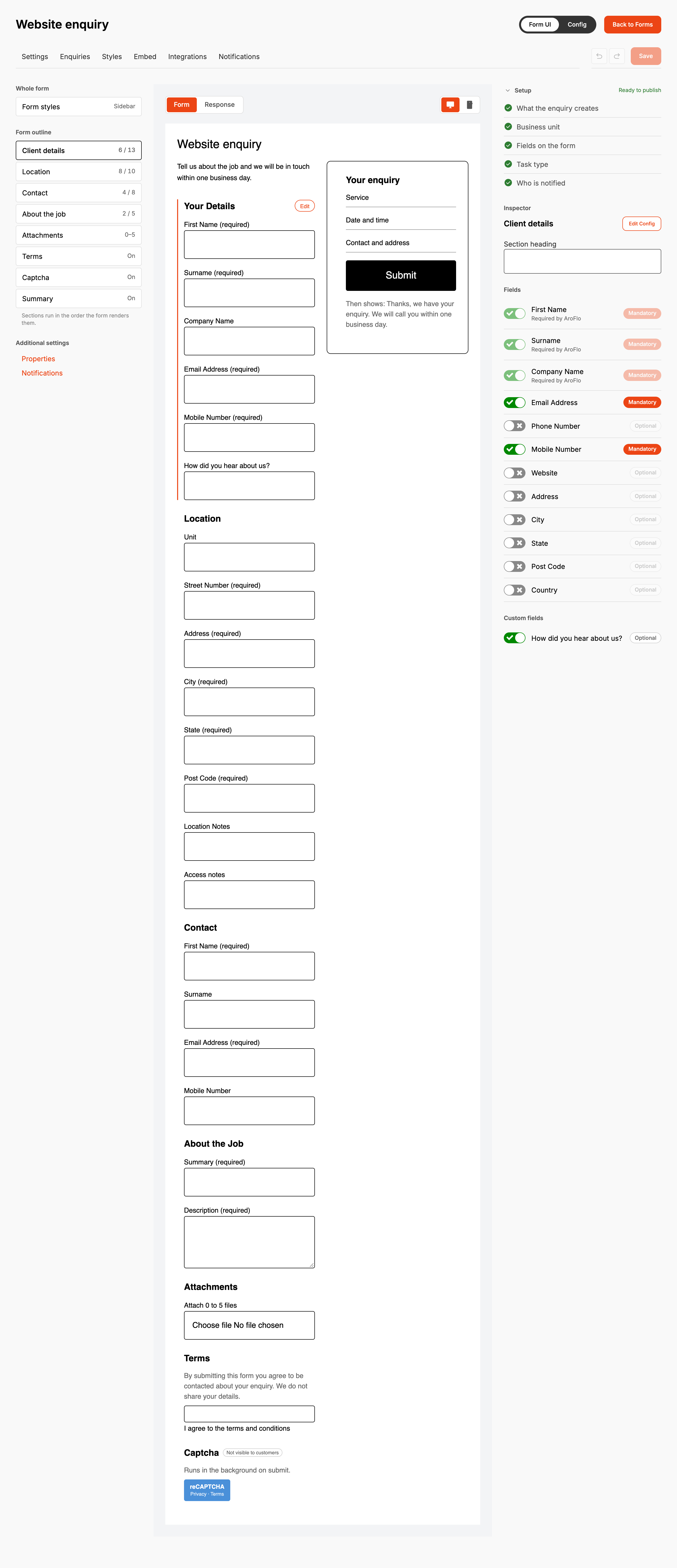
Pick a section under Form outline on the left, or click it on the canvas. For colours, fonts and layout, pick Form styles under Whole form.
-
Change the section in the Inspector on the right. Switch a field on, then click Optional to make it Mandatory. Clicking a field on the canvas jumps to it here.
-
To rename a section, double click its heading on the canvas, type the new name and press Enter.
-
Click Response above the canvas to set what the customer sees after sending the form.
-
Click Save at the top right.
The phone icon above the canvas narrows it to phone width. Phone width always puts the summary under the form.
Undo and Redo sit beside Save and walk back up to 50 changes. ⌘Z or Ctrl+Z undoes, ⇧⌘Z, Ctrl+Shift+Z or Ctrl+Y redoes, and ⌘S or Ctrl+S saves. Inside a text box the keyboard undo is the browser's own. Saving or discarding clears the history.
While anything is unsaved, the top right shows Unsaved changes with the first two changes listed and a Discard button. After a save it shows the time instead.
The Setup checklist
Setup sits above the Inspector and checks five things:
| Item | Ticked when | Fix opens |
|---|---|---|
| What the enquiry creates | The form creates a task or a quote | Default Fields |
| Business unit | A business unit is chosen | Properties |
| Fields on the form | At least one field is switched on in Client details, Location, Contact or About the job | Client Fields |
| Task type (optional) | A task type is chosen | Default Fields |
| Who is notified (optional) | At least one email recipient is saved | No button. Use Notifications under Additional settings |
The heading reads "Ready to publish" once all five are ticked, "1 to do before this form works" (or 2, 3) while a required item is open, and "1 optional" or "2 optional" when only the optional ones are left. The checklist doesn't stop you saving.
Moving between Form UI and Config
Client Fields, Location Fields, Contact Fields, Task Fields, Attachments, Legal, Captcha and Actions each have an Edit in Form UI button that opens the matching section here. Properties and Default Fields have no Form UI section, so the button isn't on them.
In Form UI, Edit Config at the top of the Inspector opens the matching Config page. Form styles opens Styles, then Fonts and colours. On the Response screen it opens Actions. Either button also sets which editor the form opens in next time.
When it goes wrong
My changes disappeared when I left the page
The form's tabs, Back to Forms, the Form UI / Config switch, Fix, Edit Config and the Additional settings links all stop and list what is unsaved, with Leave without saving and Stay on the form. Closing or reloading the browser tab gets the browser's own warning. The Dashboard, Forms, Enquiries and Settings menu at the top of AroFlo Leads doesn't ask, and unsaved changes are lost. Save before using it.
"Form saved somewhere else"
Someone saved this form, in another tab or from a Config page, after you opened Form UI. Reload and lose my changes loads their version. Keep editing keeps yours on screen, but it can't be saved over theirs. Note what you changed, reload, and make the changes again.
A section says Needs setup
The outline shows Needs setup when a section has a problem, and the canvas says what it is:
- "No fields switched on, so this section is skipped". The section won't appear on the form. Switch a field on, or click Manage Client Fields (or the matching page) to open its Config page.
- "Captcha is on with no credentials chosen". Pick Credentials in the Inspector.
The form doesn't redirect after sending
On the Response screen, Redirect to a page needs a Redirect URL. Without one the live form shows the thank you message instead.
Custom fields don't show
Without a subscription the Inspector says "Custom fields are only available to Lead form subscribers." With one, "No custom fields have been set up in AroFlo for this record." means AroFlo returned none for that record. If the list never loads, check the account has an AroFlo credential.
First Name, Surname and Company Name won't switch off
AroFlo won't create a client without them, so they are marked "Required by AroFlo" and can't be switched off or made optional.
The summary on the canvas doesn't match the website
The canvas summary is a placeholder. On the website it lists what the customer has typed so far, and the button reads "Send enquiry".
FAQ
When do customers see my changes?
Save publishes the form straight away. Customers see the change the next time they load the page with the form on it.
Task type is optional on the checklist. What happens without one?
A task or quote from a form with no task type takes the task type of the first task AroFlo returns for the account. If that enquiry then fails, the enquiry page won't send it again until the form has a task type, so set one under Default Fields.