Style the form's layout, fonts, colours and headings
The Styles tab controls how the form looks on your website. It has three pages, each with its own Save, and saving publishes the form. Styles need no subscription. The same settings sit in Form UI under Form styles, where the canvas shows each change as you make it.
Open your form from Forms and click the Styles tab. It opens on Layout options. Save each page before moving to the next one, because unsaved changes are dropped when you switch.
Layout options
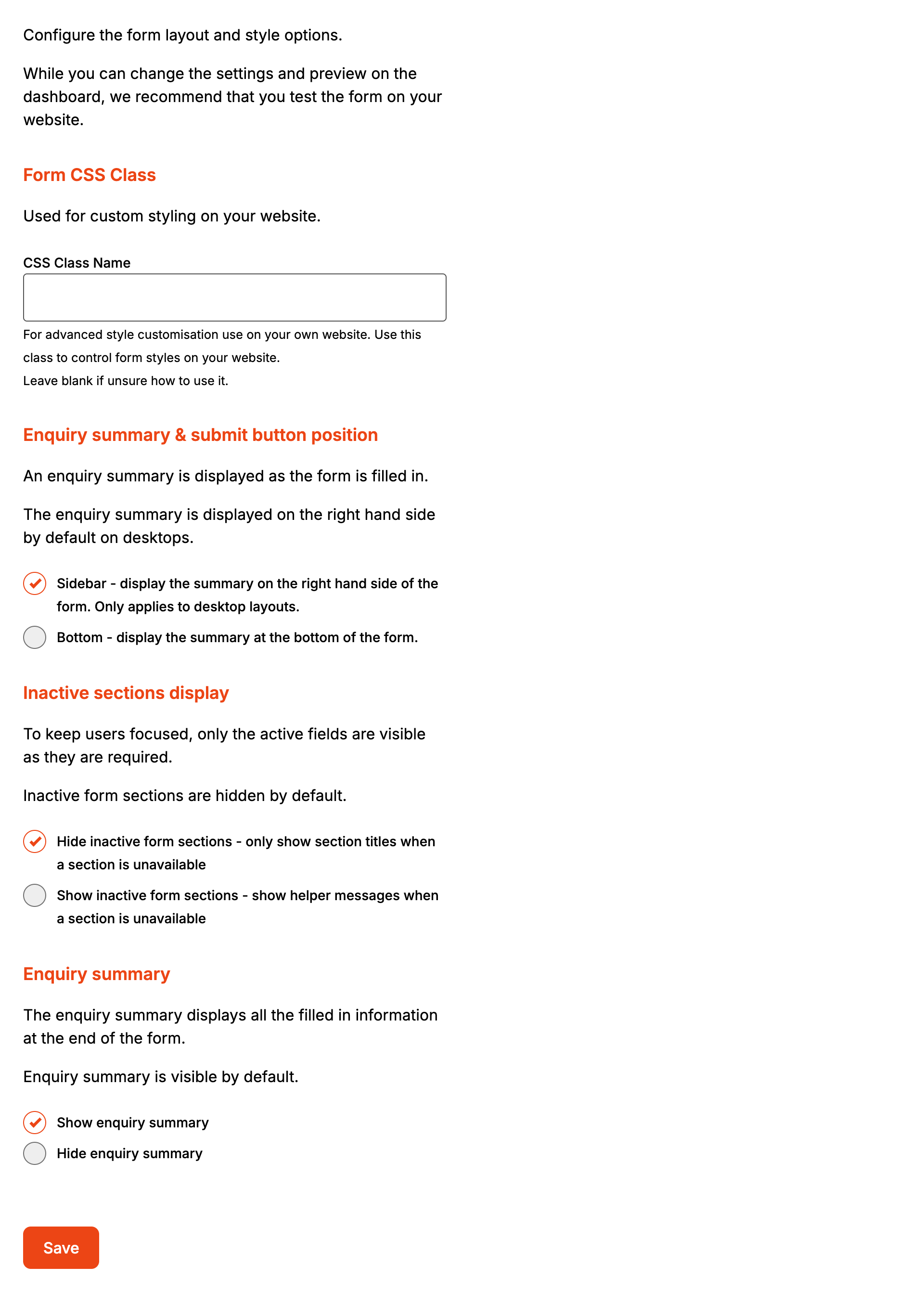
CSS Class Name adds your class to the form's outer box on the website. Parts of the form get
the same name with a suffix, so a class of hp-enquiry gives you:
| Class | On |
|---|---|
hp-enquiry-ClientFields, hp-enquiry-LocationFields, hp-enquiry-ContactFields, hp-enquiry-TaskFields |
The fields of each section |
hp-enquiry-Subheading |
Each section heading |
hp-enquiry-Empty |
The message under a locked section |
hp-enquiry-Attachments |
The attachments section |
hp-enquiry-Confirmation, hp-enquiry-ConfirmationHeading |
The summary box and its heading |
Enquiry summary & submit button position puts the summary and the Send enquiry button in a column on the right (Sidebar) or under the form (Bottom). The sidebar only appears on screens about 640 pixels wide or more. Narrower screens always get the summary underneath.
Inactive sections display decides what a locked section shows. Sections open in order: Location once the client details are complete, Contact once Location is, About the Job once Contact is, and Attachments once all four are. Hide inactive form sections shows only a locked section's heading. Show inactive form sections adds the section's inactive message from Headings and labels. A section with no fields switched on doesn't appear at all.
Enquiry summary set to Hide enquiry summary removes the summary's heading, the list of answers and the prompt that says which section still needs completing. The Send enquiry button stays.
Click Save.
Fonts and colours
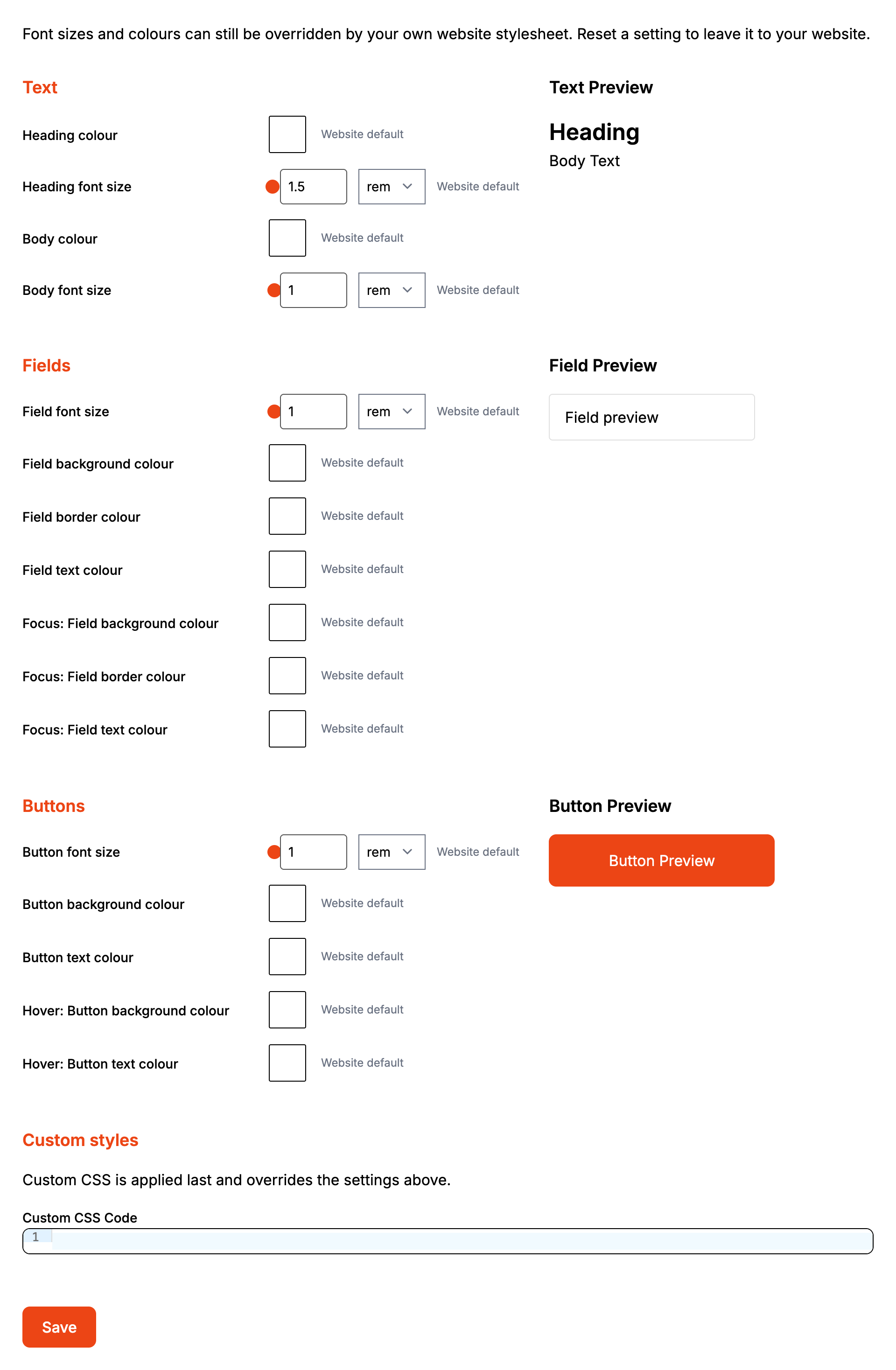
Click a swatch to pick a colour. Font sizes take a number and a unit (rem, em or px). Reset next to a setting clears it, and it shows "Website default" again, which leaves it to your website's stylesheet. Your website's stylesheet can still override anything set here.
On the live form each group applies to:
| Setting | Applies to |
|---|---|
| Heading colour, Heading font size | Section headings and the summary heading. The form's name at the top keeps your website's style |
| Body colour, Body font size | Paragraph text: the form description and the messages in the summary box. Field labels keep your website's style |
| Field font size and the six field colours | Single line text, email and phone boxes, and the address search box |
| Focus: field colours | Those same boxes while the pointer is over them |
| Button font size and the four button colours | Every button in the form, including Send enquiry and the address suggestions |
Description and notes boxes, dropdowns, and date, number and website fields aren't covered by the field settings. Style them with Custom CSS Code.
Custom CSS Code is applied last and overrides the settings above it. Its rules only reach
inside the form, so h1 { color: #0a3d62; } changes the form's name and nothing else on the
page.
Click Save.
Headings and labels
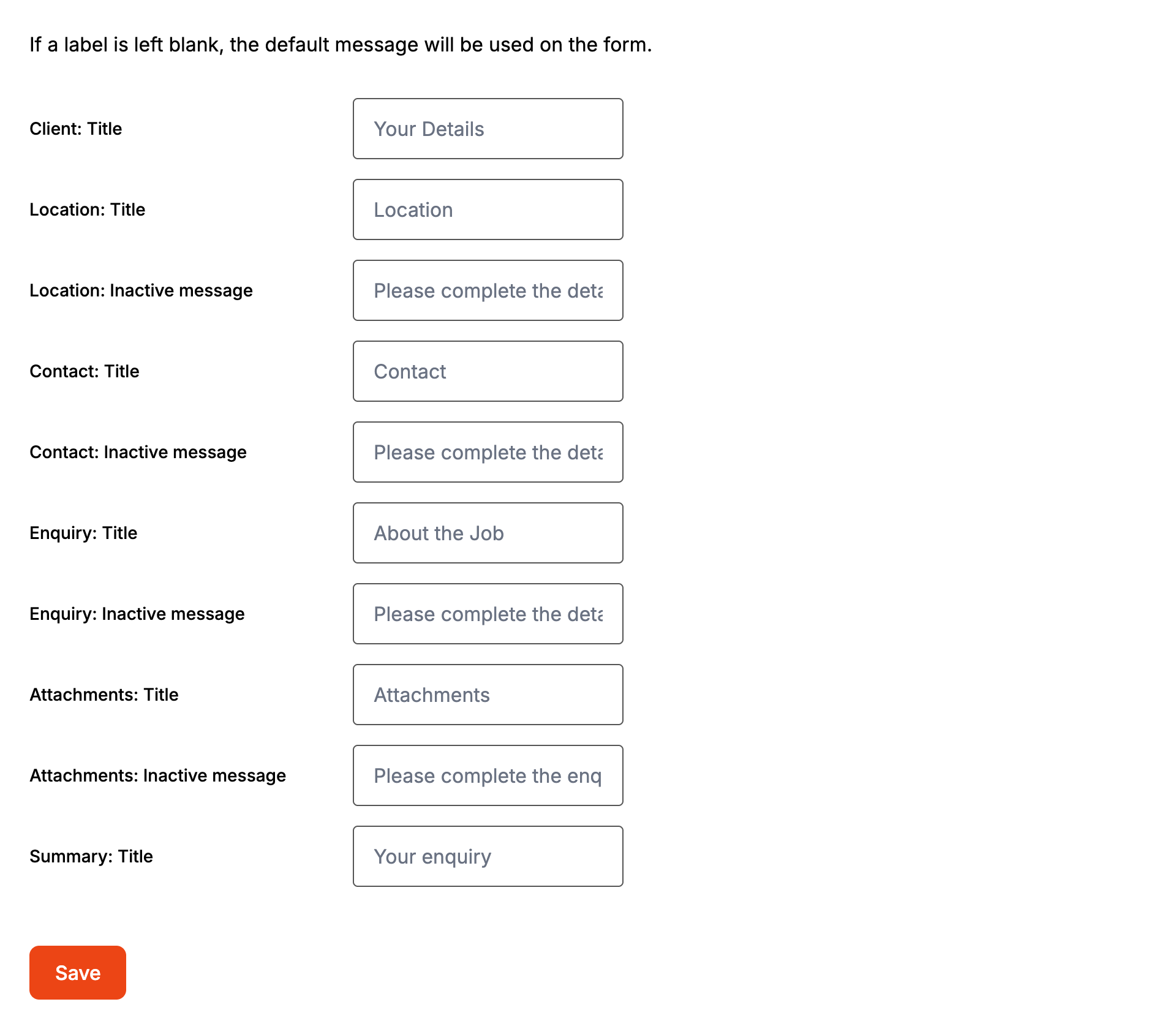
Type the wording you want and click Save. A blank field uses the default.
| Field | Default |
|---|---|
| Client: Title | Your Details |
| Location: Title | Location |
| Location: Inactive message | Please complete the details above. |
| Contact: Title | Contact |
| Contact: Inactive message | Please complete the details above. |
| Enquiry: Title | About the Job |
| Enquiry: Inactive message | Please complete the details above. |
| Attachments: Title | Attachments |
| Attachments: Inactive message | Please complete the enquiry. |
| Summary: Title | Your enquiry |
The inactive messages only show when Layout options is set to Show inactive form sections. In Form UI these are the Section heading and Message when locked settings on each section, and you can also double click a heading on the canvas to rename it.
When it goes wrong
A colour doesn't show on the website
Your website's own stylesheet may be overriding it. Check the setting applies to that part of the form using the table above. A text area or dropdown ignores the field colours, for example. If it should apply, add a rule to Custom CSS Code, which comes last.
The Focus colours only change when I hover
The Focus: field colours apply while the pointer is over a field. They don't stay on while
the customer types. To style a field while it has the cursor, add a :focus rule to Custom
CSS Code.
The inactive messages never appear
They need Show inactive form sections on Layout options. With the default, Hide inactive form sections, only the heading of a locked section shows.
Customers can't tell why Send enquiry is greyed out
With the summary hidden, the prompt that names the incomplete section is hidden too. Show the summary, or make sure every section's mandatory fields are clearly marked.
The heading at the top of the form didn't change
That heading is the form's name. Change its wording under Properties. Heading colour and
Heading font size don't reach it, so style it with an h1 rule in Custom CSS Code.