Edit a lead form on screen with Form UI
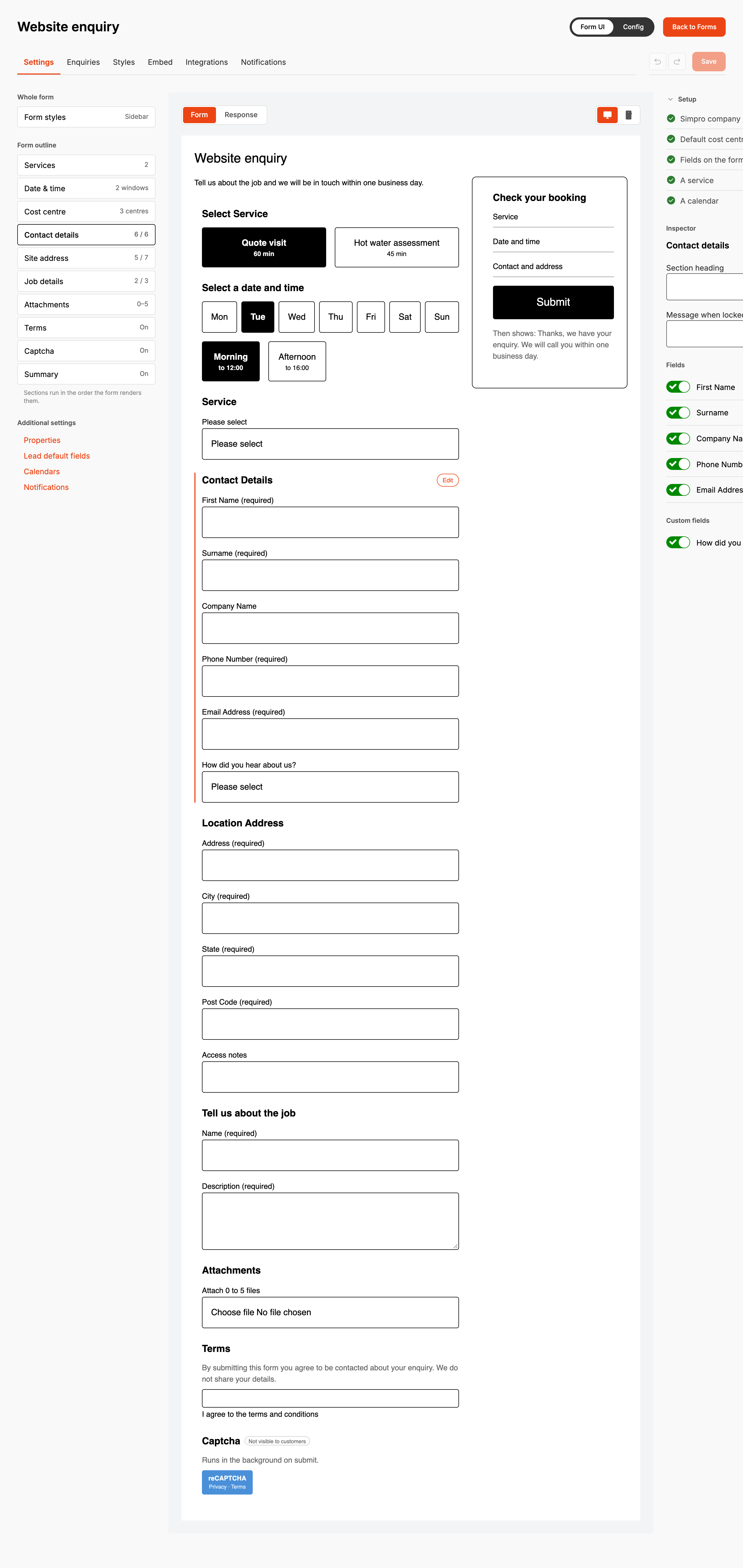
Form UI shows the lead form the way customers see it and lets you change it in place. It edits the same settings as Config, so a change saved in one shows in the other. Nothing reaches your website until you click Save.
Before you start
- The form needs a Simpro company on its Properties page. Until it has one there is no Form UI / Config switch, and the form only opens in Config.
- Custom fields, attachments and the Response screen need a Lead form subscription. Without one those panels say so and link to View subscriptions. Services, time windows and the cost centre choice also only reach the live form with a subscription.
- Form UI can't add services, time windows, cost centres or calendars. Set those up in Config and they appear on the canvas.
Step by step
-
Open your form from Forms and click Form UI at the top right, beside Back to Forms. The form opens in Form UI from then on in this browser.
-
Click a section in the Form outline on the left, or click it on the canvas. Its settings open in the Inspector on the right. Clicking a single field on the canvas takes you straight to that field.
-
Under Fields, switch each field on or off.
-
Click Optional beside a field to make it Mandatory. Click again to make it optional.
-
To rename a section, double-click its heading on the canvas, or change Section heading in the inspector.
-
Click Form styles under Whole form for layout, colours, font sizes and custom CSS. Clicking the form's name on the canvas opens it too.
-
Click Response above the canvas to set what customers see after they send the form.
-
Click Save.
Changes are staged until you save. While anything is staged, the top right shows Unsaved changes with the sections you've touched, and a Discard button that puts the form back to the last save. After a save it shows Saved at and the time. Saving publishes the form, so the next person to load your website page gets the new version.
The undo and redo arrows beside Save step back and forward through everything staged since the last save. The shortcuts are ⌘Z, ⌘⇧Z and ⌘S on a Mac, and Ctrl+Z, Ctrl+Shift+Z (or Ctrl+Y) and Ctrl+S on Windows. While you're typing in a box, the undo shortcut undoes your typing.
A form with no fields switched on shows This form has no fields yet on the canvas, with Enquiry, Booked job and Contact only as starting points. Picking one is staged like any other change, so undo takes it back.
The Setup checklist above the inspector checks for a Simpro company, a Default cost centre, Fields on the form, A service and A calendar. The last two are marked Optional because the form takes enquiries without them. Each missing item has a Fix button that opens its Config page. With nothing missing it reads Ready to publish, and clicking Setup folds the list away.
Each section's inspector has an Edit Config button that opens the Config page holding every setting for that section. Config pages with a matching section have Edit in Form UI to come back. Both buttons also change which editor the form opens in next time. Properties, Lead default fields, Calendars and Notifications have no section in Form UI. They're linked under Additional settings at the foot of the outline.
The two buttons at the top right of the canvas switch between desktop and phone width. At phone width the summary moves under the form.
When it goes wrong
There's no Form UI button
The form has no Simpro company. Pick one on Properties and save.
A section in the outline says Needs setup
The section won't show on the form as it is set up. Hover over it for the reason, or read the note on the canvas, which has a Manage button for the Config page that fixes it. A fields section with no fields switched on is skipped. On a form that doesn't book visits, Services and Date & time always say Needs setup, and the form still takes enquiries.
Leaving the form asks about unsaved changes
Unsaved changes lists what would be lost. Stay on the form takes you back so you can save. Leave without saving drops every staged change. The form's tabs, Back to Forms, the Form UI / Config switch and the links in the outline and checklist all ask first, and so does closing or reloading the browser tab.
Form saved somewhere else
Someone saved this form after you opened it, in another tab or on another computer. Reload and lose my changes loads their version. Keep editing keeps your changes on screen, but saving fails until you reload, so note what you changed first.
Renaming Job details doesn't change the website
The live form always calls that section "Enquiry Details", whatever the heading is set to here.
Customers see a message when they should be redirected
On the Response screen, Redirect URL needs a full address, such as
https://www.example.com.au/thank-you. Without one the customer sees the success message.
Redirecting needs a Lead form subscription.
FAQ
Can I add a service or cost centre in Form UI?
No. Form UI lists them in the inspector and shows them on the canvas. Add them in Config under Services or Cost Centres (Cost Centres), then come back.