Choose what customers see after sending the lead form
Actions decides what happens once the customer sends the form. The form either shows a message in its place, or the browser goes to another page.
Before you start
- Actions needs a Lead form subscription. Without one, the switches and fields are greyed out and the form shows its default message.
Step by step
-
Open your form from Forms. If it opens in Form UI, switch to Config. Then open Settings, then Actions.
-
Turn on the action you want, Show response message or Redirect to another page. Turning one on turns the other off.
-
For a message, type it in Successful response message. Left blank, the form shows "Thank you for your enquiry."
-
For a redirect, enter the full address in Redirect URL,
https://included. -
Click Save.
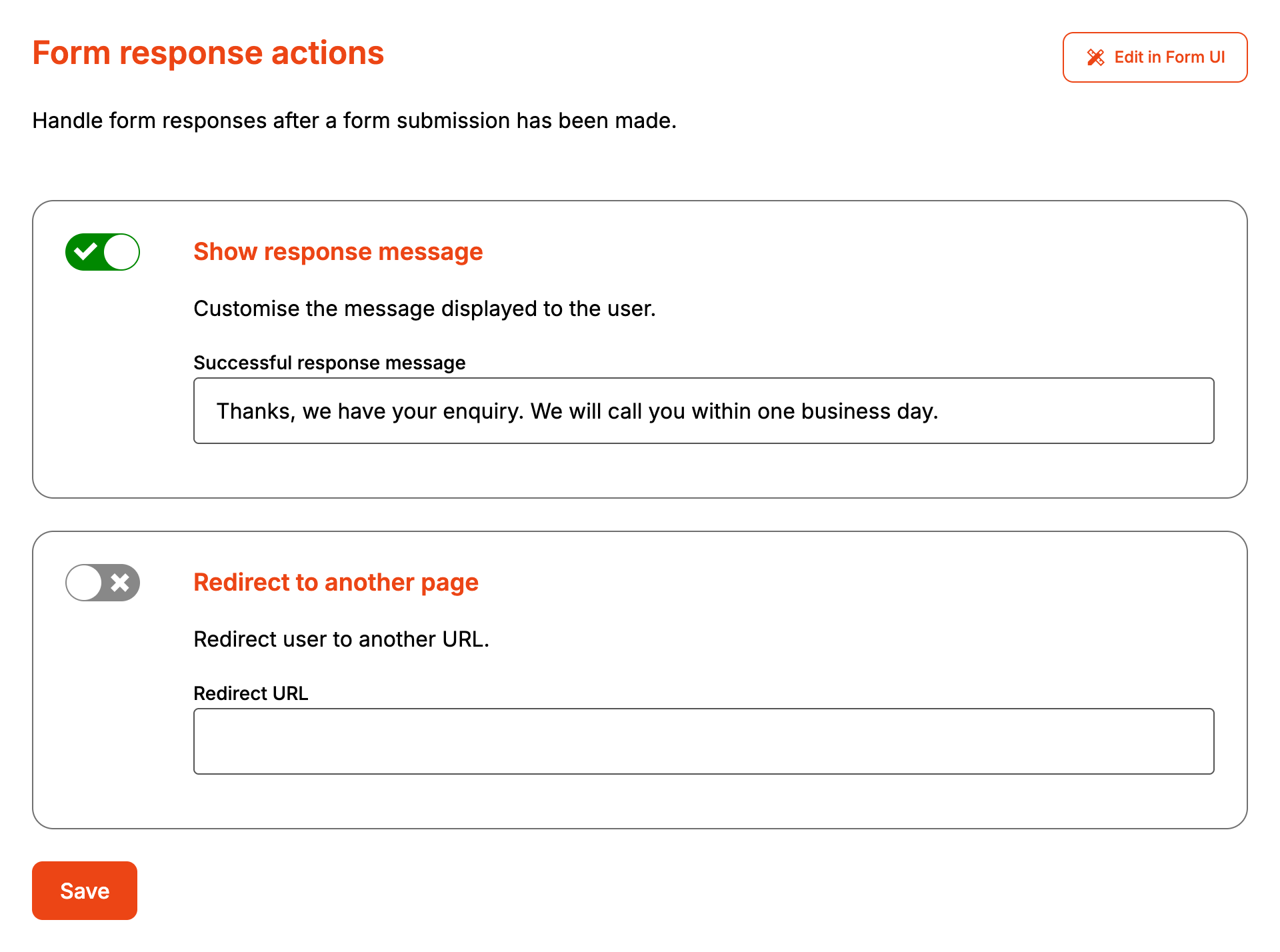
The message is plain text. HTML in it shows on the form exactly as typed.
The redirect happens once the enquiry and any attachments have been sent. The form sits inside your web page, so the whole page moves to the new address.
When it goes wrong
The form shows "Thank you for your enquiry." instead of my message
Either Successful response message is blank, or the account has no Lead form subscription. Without a subscription, the form drops your message the next time it is saved.
The customer isn't redirected
Without a Lead form subscription, the form goes back to showing a message the next time it is
saved. With one, check Redirect URL is a full address starting with https://. The form
ignores an address without http in it.
Save won't go through with Redirect to another page on
Redirect URL is required while the redirect is on, and the browser only accepts a full
address such as https://www.example.com/thank-you.
FAQ
Can I show a message and redirect?
No. One of the two is always on, and turning on the other switches it off. With the redirect on, the response message can show for a moment while the new page loads.