Put a lead form on your website
The Embed tab has two ways to put the form on your website: a short piece of code, or the Formpiece WordPress plugin. Either way you add it once. The form reads its settings each time the page loads, so anything you save in the dashboard shows on your website without pasting it again.
Before you start
- The Embed tab appears once the form has a Simpro company on its Properties page.
- You need to be able to edit the page on your website, or have your web developer do it.
Step by step
With the embed code
-
Open your form from Forms and click the Embed tab. It's there whether the form opened in Form UI or Config.
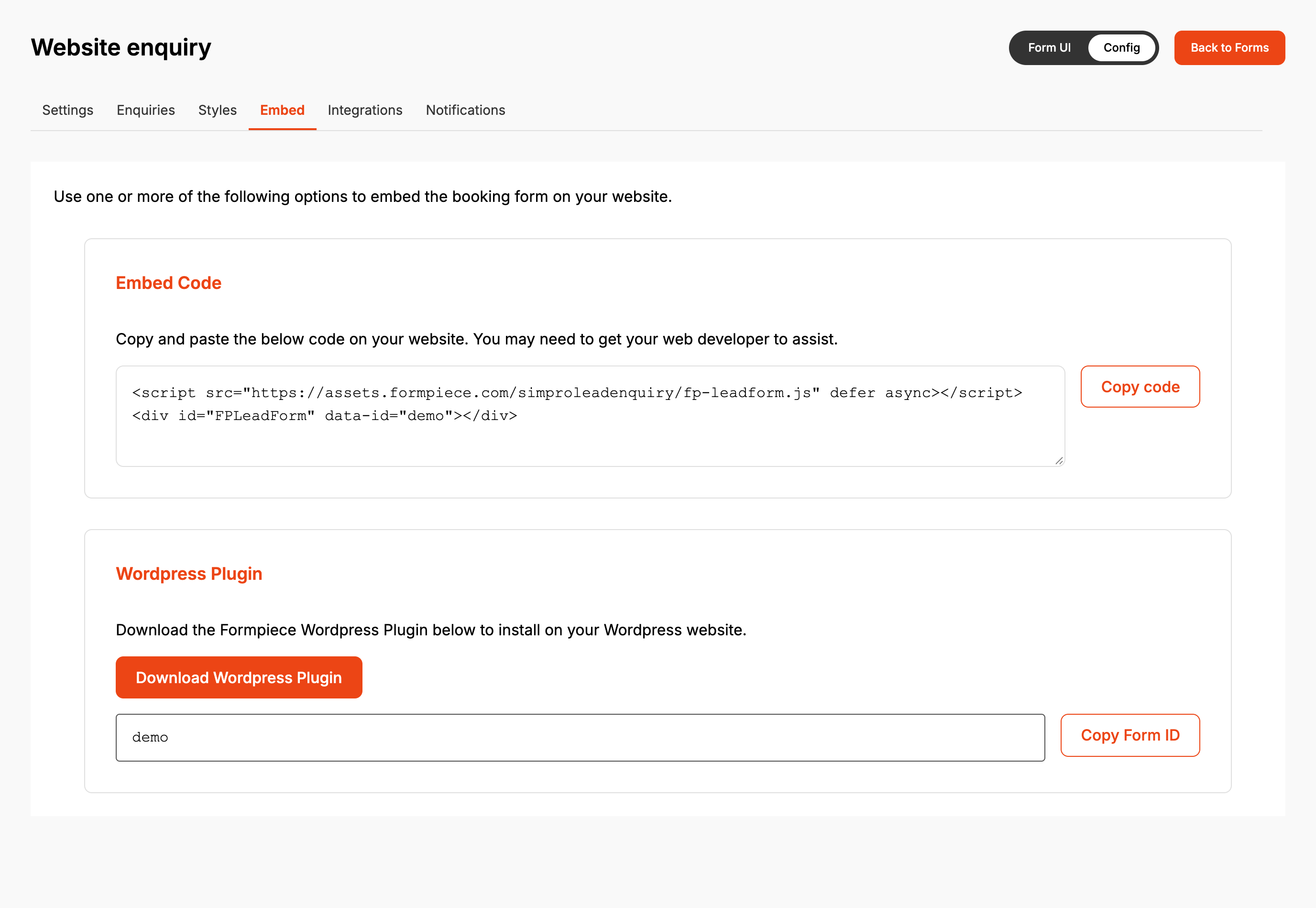
-
Under Embed Code, click Copy code.
-
Paste the code into your page where the form should appear. The form loads inside the
<div>line, so keep both lines together. -
Publish the page and open it in a browser to check the form loads.
With the WordPress plugin
- Under Wordpress Plugin, click Download Wordpress Plugin.
- Install and activate the downloaded zip in WordPress the way you add any plugin. It's called Formpiece Forms.
- Back on the Embed tab, click Copy Form ID.
- In WordPress, open Settings, then Formpiece.
- Paste the Form ID into the lead enquiry form's Form ID box and click Copy Code.
- Paste the shortcode into the page or post where the form should appear. It looks like
[fp_leadenquiryform form_id="your Form ID"].
The Form ID is all the plugin needs. The shortcode turns it into the same embed code when the page loads. The plugin's settings page also has Preview Form to check the form loads before you publish the page.
When it goes wrong
Nothing appears where the code is
Check both lines of the code are on the page and unchanged. The data-id in the <div> is the Form
ID, and if it's edited or belongs to a deleted form, nothing loads. A form that hasn't been saved
since it was created isn't published yet either. Open its Properties, click Save and reload
the page.
Changes in the dashboard don't show on the website
Saving publishes the form straight away, so reload the page first. If the change still doesn't show, check it isn't a subscribed feature. Without a Lead form subscription, custom fields, attachments, services, the cost centre choice and the after-submit settings are left off the live form, whatever the dashboard is set to.
The second form on the page is blank
Only one lead form loads per page. Both copies of the code, and the WordPress shortcode, use the same
FPLeadForm element, and only the first one gets the form. Put the second form on its own page.
FAQ
Can I send customers a link to the form?
Formpiece doesn't host the form on a page of its own. Put it on a page of your website and send that page's address.