Email your staff when a lead arrives or fails
The Notifications tab emails your staff. Recipients get an email for each new lead. Failed notifications go out when Formpiece hits an error saving a lead in Simpro. Formpiece doesn't email the customer. Set customer emails up in Simpro.
Before you start
- Notifications need a Lead form subscription. Without one, the tab shows Want to receive lead notifications? in place of the recipient tables.
- The tab appears once the form has a Simpro company on Properties. Archived forms don't have it.
Step by step
-
Open your form from Forms and click the Notifications tab. It's there in both Form UI and Config.
-
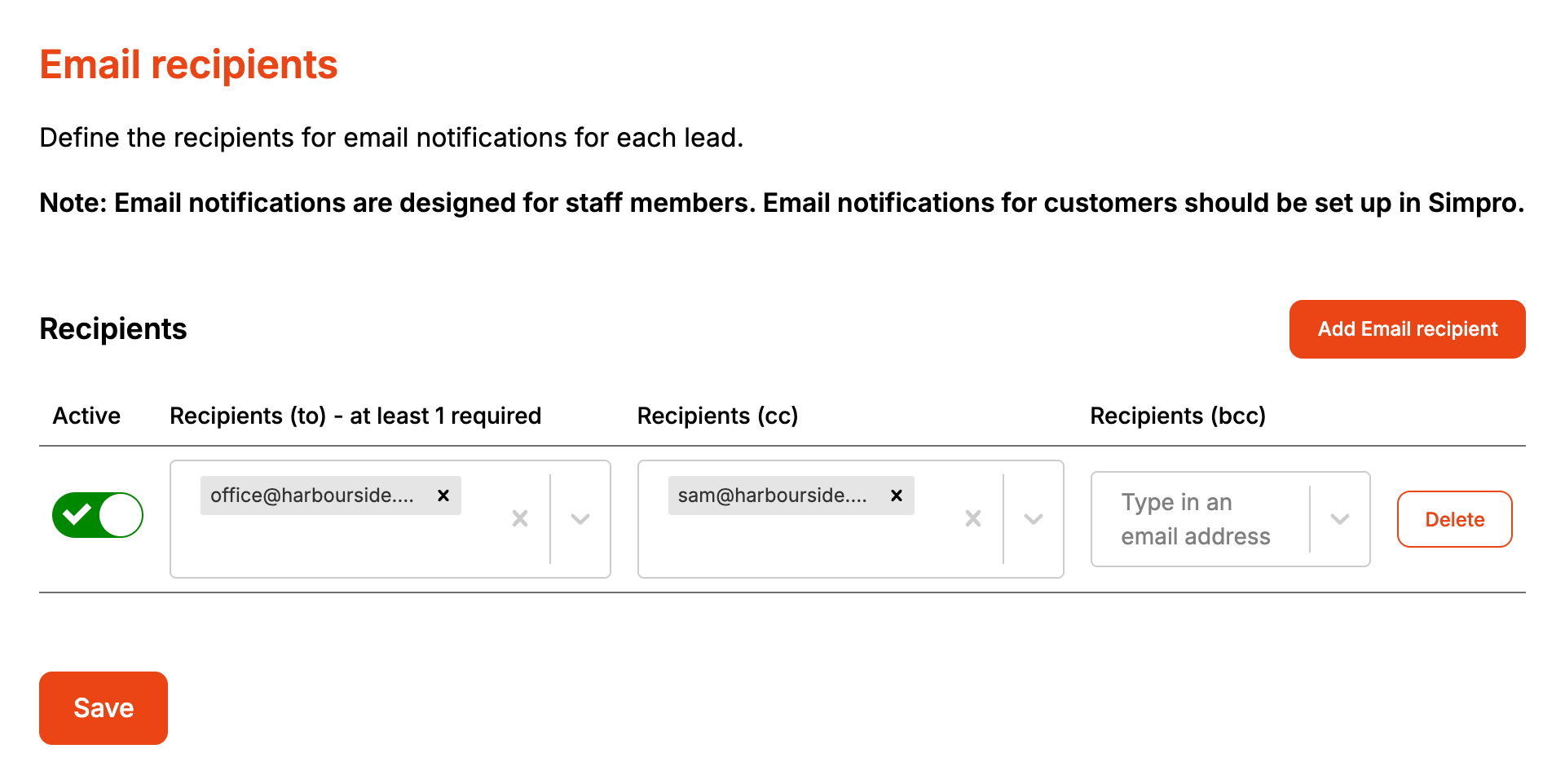
Recipients opens first. Click Add Email recipient.
-
Type an address into Recipients (to) and press Enter. Add more the same way, and any Recipients (cc) and Recipients (bcc).
-
Click Create Recipient. It stays greyed out until Recipients (to) has a valid address.
-
Click Save.
-
Open Failed notifications and click Add failed booking recipient.
-
Add the addresses the same way, then click Create failed notification recipient.
-
Click Save.
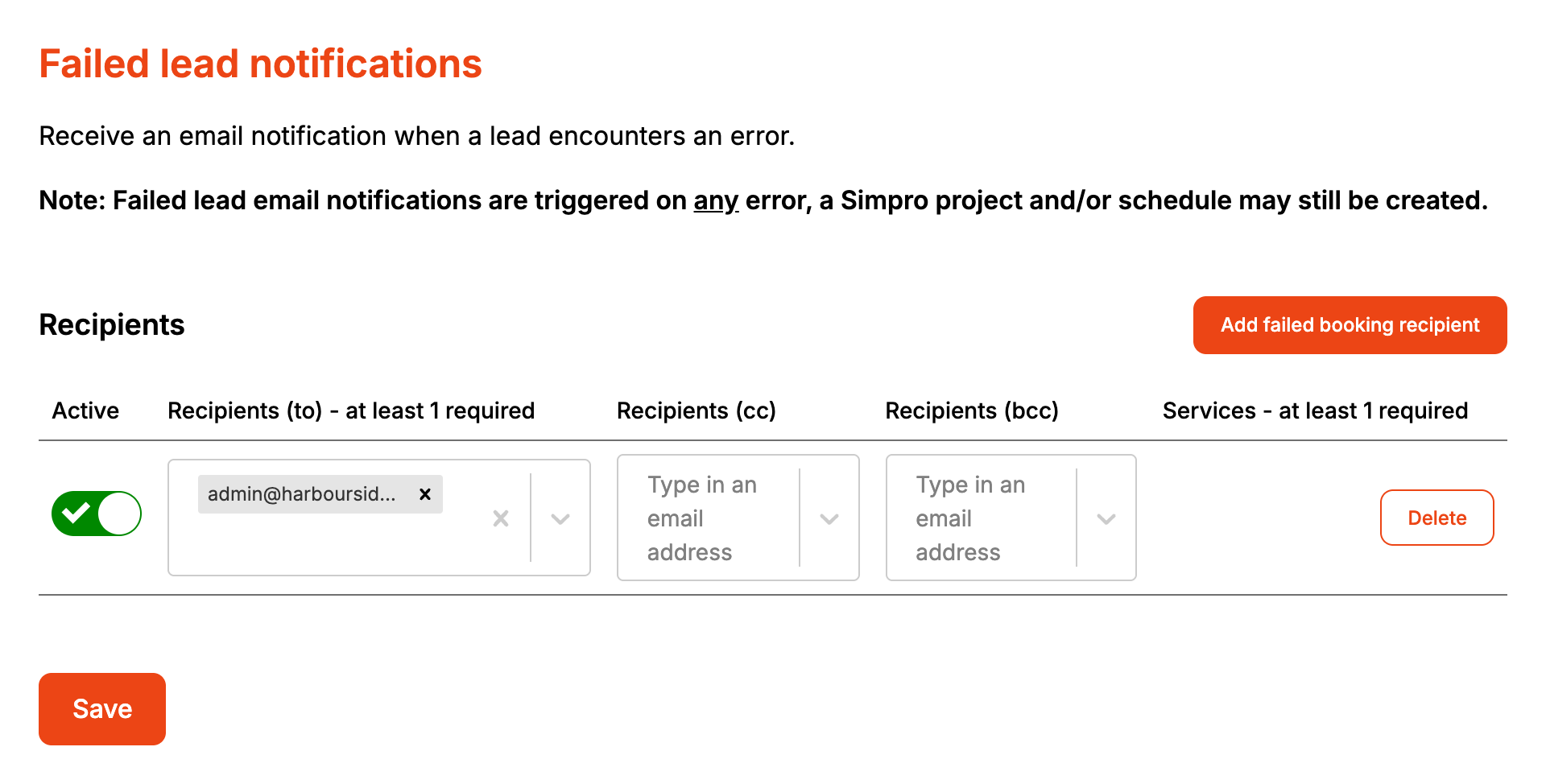
Each row is one email. Every address in a row gets the same email, and two active rows send two separate emails. Switch a row off to stop its email without deleting it. Nothing changes, deletes included, until you click Save.
The new lead email's subject is "New Simpro lead enquiry [first name or company] via Formpiece". It has the form name, the customer's name, email and phone, the site address, the Simpro lead number, the enquiry description, any custom field answers and a link to the enquiry in Formpiece. A booked date and time aren't in it. Open the enquiry for those. It comes from an unmonitored address.
The failed email's subject is "Failure on enquiry from [first name or company] via Formpiece". It has the form name, the customer's name, a link to the enquiry and each error: the record that failed (customer, site, lead, schedule, lead status and so on) and Simpro's message.
Which emails go out depends on how far the lead got:
- The lead was created with no errors: the new lead email only.
- The lead was created, but Simpro refused part of the enquiry, such as a custom field, the schedule or the status: both emails. This is what the page means by "a Simpro project and/or schedule may still be created".
- The customer, site or lead couldn't be created, or the Simpro connection failed: the failed email only.
When it goes wrong
A recipient I added has gone
It wasn't saved. Moving between Recipients and Failed notifications, or leaving the tab, drops anything not saved. Click Save on each page before you move on.
An address I typed didn't stick
The boxes only keep valid email addresses. Anything else is dropped as you add it.
I got a failed email but the enquiry looks fine
The enquiry under Enquiries only lists errors when no lead was created. When the lead was made and a later step failed, such as the schedule or the status, the failed email is where the errors show. A blank Schedule under Integration on the enquiry means the schedule wasn't made.
Nobody got an email for an enquiry
Check the row is switched on and was saved. A submission refused by captcha is never saved, so it sends no email of either kind.
FAQ
What goes in the Services column on Failed notifications?
Nothing. The column has no field, and failed notifications cover every lead from the form.