Set the status, salesperson and follow-up date on new leads
Lead Default Fields are the values every new lead from this form starts with in Simpro: status, follow-up date, salesperson, manager, tags, private notes and lead custom fields. Leave a field blank and Simpro's own default applies.
Before you start
- The form needs a Simpro company on its Properties page. Until it has one, Lead Default Fields is missing from the form's menu.
- Saving needs a Lead form subscription. Without one the page loads but Save stays greyed out.
- The Salesperson list only shows employees and contractors marked as a salesperson in their Simpro user profile. The Manager list only shows those marked as a project manager.
- Statuses, tags and lead custom fields are read live from Simpro. Create them there first.
Step by step
- Open your form from Forms. If it opens in Form UI, switch to Config. Then open Settings, then Lead Default Fields.
- Pick a Status, or leave it clear to keep the status Simpro gives a new lead.
- Enter Follow Up Date as a number of days.
2means two days after the enquiry arrives. - Pick a Salesperson, a Manager and any Tags.
- Add Private Notes if every lead should carry the same note.
- Fill in any Default Lead custom field values. A date field takes a number of days.
- Click Save.
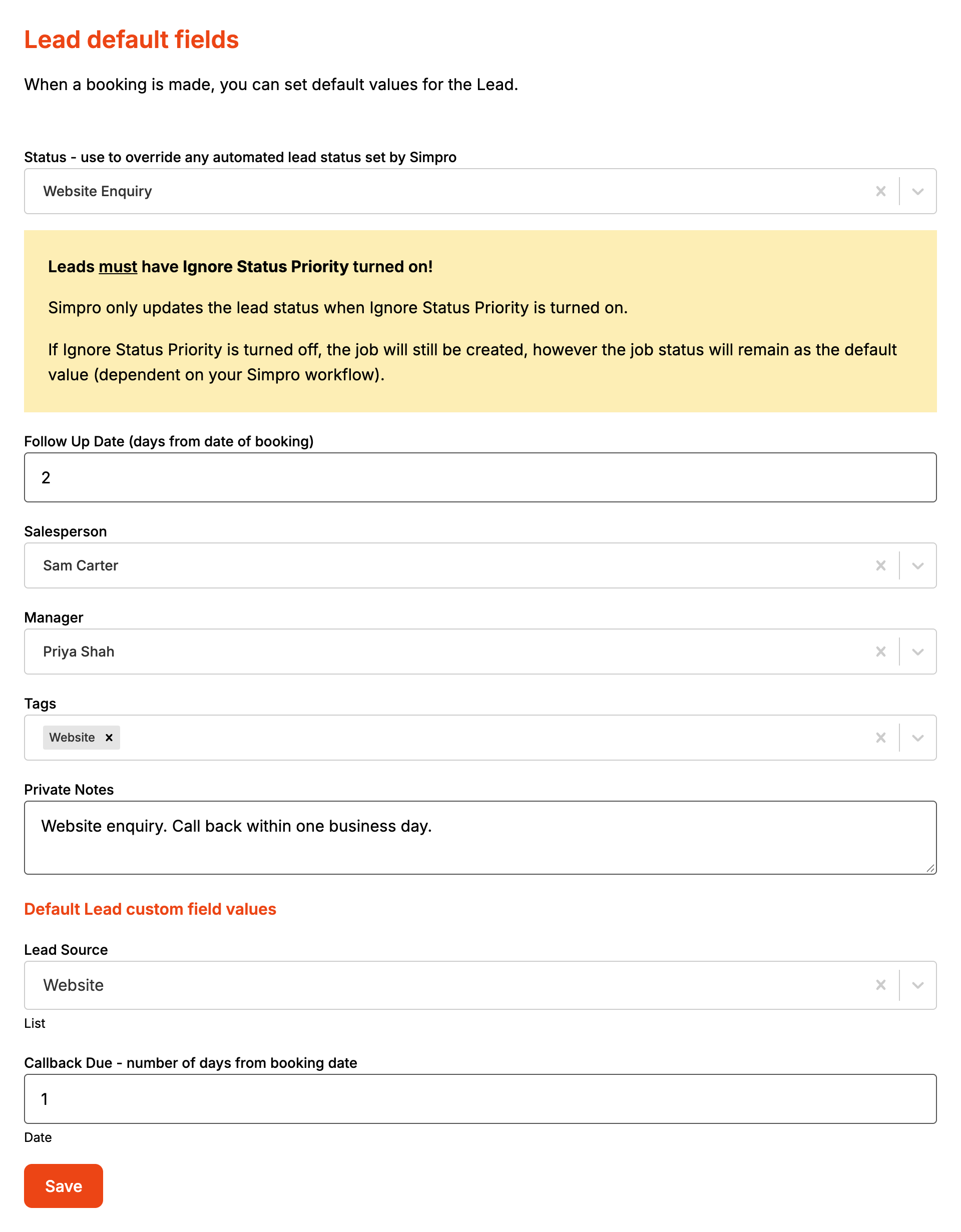
Saving publishes the form, so the next enquiry uses the new values. Existing leads are not touched.
How it maps to Simpro
| Setting | Simpro lead field | When it is set |
|---|---|---|
| Status | Status | After the lead, and any visit booked with it, is created. A separate update |
| Follow Up Date | Follow Up Date | On create. The enquiry date in the form's timezone, plus the days |
| Salesperson | Salesperson | On create |
| Manager | Project Manager | On create |
| Tags | Tags | On create. These are Simpro project tags |
| Private Notes | Notes | On create. Skipped if blank |
| Custom field values | Lead custom fields | After create, one field at a time. Days become a date |
If Simpro refuses the status or a custom field, the lead still exists and the refused value is missing from it. The enquiry page only lists Simpro's errors for an enquiry that never became a lead, so check the lead in Simpro after changing these settings.
When it goes wrong
The status never changes
Simpro only accepts a status change on a lead when Ignore Status Priority is on. With it off, the lead is created and keeps whatever status your Simpro workflow gives it.
Someone is missing from the Salesperson or Manager list
They are not marked as a salesperson or project manager in their Simpro user profile. Change it in Simpro and reload the page.
The follow-up date is earlier than expected
It counts from the day the enquiry arrives. A site visit booked on the same form doesn't change it.