Let customers book a morning or afternoon window
A time group window lets the customer pick a block of time, such as Morning, in place of an exact start time. Formpiece books the earliest free time inside the window and puts that time on the Simpro lead schedule.
You create the windows here and turn them on per service under Calendars. After picking a service and a date, the customer sees one button per window, in start time order, with the window's name and times. A window with no free time that day is greyed out and can't be picked.
Before you start
- Time groups need a Lead form subscription. Without one, Add Time group and Save are hidden.
- The service needs staff calendars under Calendars. A window only offers times when one of the service's staff is working and free.
Step by step
-
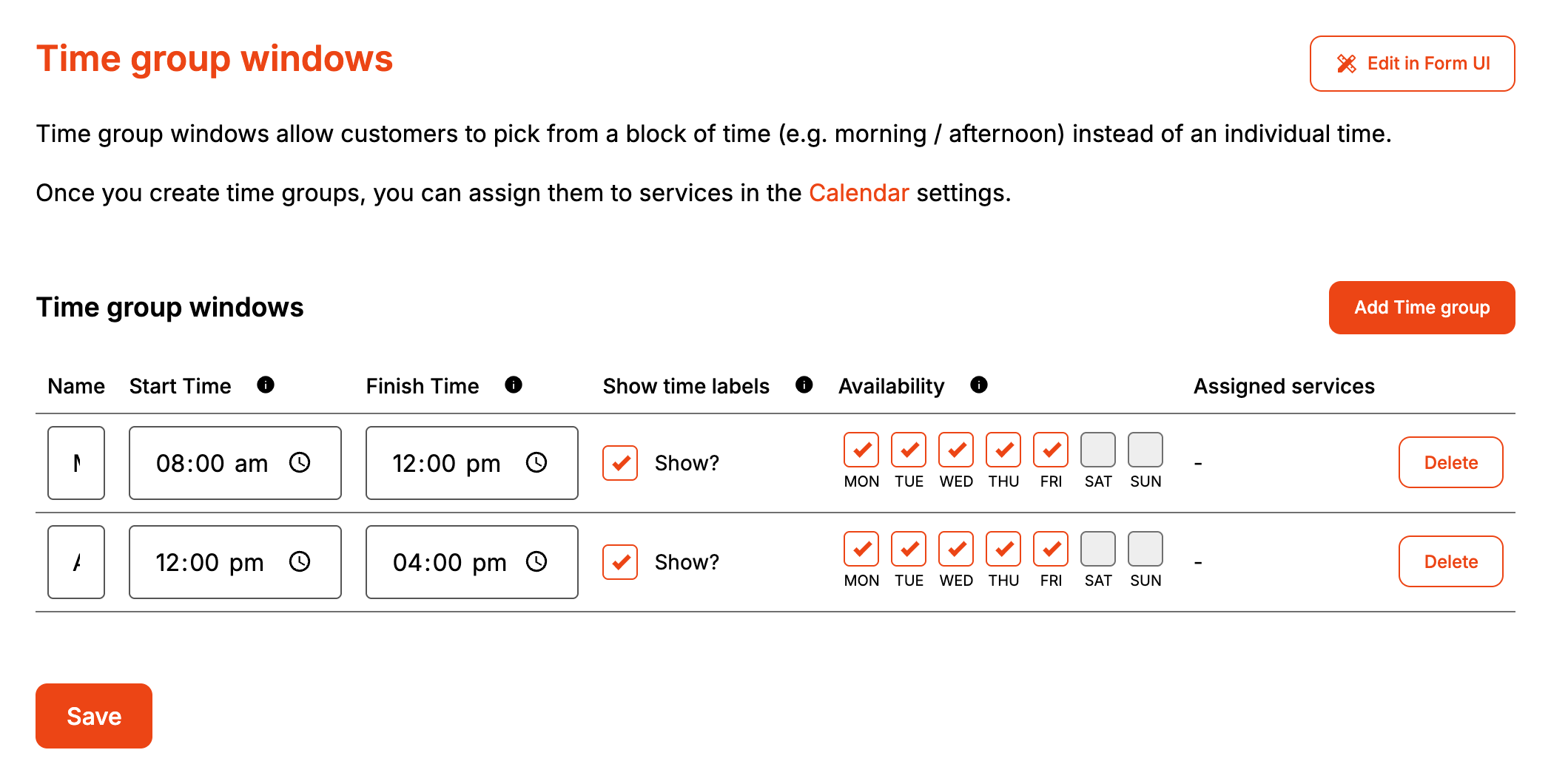
Open your form from Forms. If it opens in Form UI, switch to Config. Then open Settings, then Time Group Windows.
-
Click Add Time group.
-
Enter a Name. Customers see it on the window button.
-
Set Start Time and Finish Time. Keep both on your Time Intervals step from Bookings.
-
Tick at least one day under Availability.
-
Click Create Time group. It stays greyed out until the window has a name, a start before its finish and a day ticked.
-
Click Save.
-
Open Calendars and pick the service. Choose Show time availability by time groups., tick the windows under Selected time groups and click Save.
How it maps to Simpro
For each staff member on the service who works that day, Formpiece searches from the later of the window's Start Time and their own Start Time, to the earlier of the two finish times. It steps through in your time interval and takes the first time that is still to come, where the whole visit fits before that finish and doesn't overlap their other Simpro schedules. The earliest of those times wins, and the schedule goes to that staff member.
| On the form | In Simpro |
|---|---|
| The window the customer picks | Nothing. Simpro only gets the time Formpiece chose |
| The time Formpiece chooses | The lead schedule's date and start time. The end time adds the service's Scheduled minutes |
| The staff member free first | The staff member on the lead schedule |
When it goes wrong
Customers see exact times instead of windows
The service is set to Show time availability by individual blocks. under Calendars, or no window is ticked for it. A service with the windows option on but none ticked still shows individual times.
A window is always greyed out
No staff member on the service has a free time in it. Check that their hours on Calendars overlap the window, that the window is longer than the service's Scheduled minutes, and that they aren't already booked in Simpro. On today's date, a window whose times have all passed is greyed out too.
Booked times don't line up with the Simpro schedule format
The search starts at the window's start or the staff member's start, whichever is later. If either is off your time interval, so is the booked time.
A change to a window didn't save
A row with no name, a Finish Time that isn't after its Start Time, or no days ticked keeps its previous values when you click Save, even though the new ones show on screen.
FAQ
Does the customer see the exact time they were booked for?
No. The form shows the window they picked. The exact time is on the Simpro schedule and on the enquiry under Enquiries.