Choose the staff, hours and schedule rate for each bookable service
Calendars links each service to the Simpro employees and contractors who take it. Their hours and days decide which dates and times the form offers, and the person booked gets the schedule on the Simpro lead.
Before you start
- Calendars need a Lead form subscription. Without one, a service's settings don't open.
- Add the service under Services first. With none, the page shows Please add a service first.
- Create any Time Group Windows the service should use.
- Staff and schedule rates are read live from the Simpro company on Properties. If Simpro returns no employees or contractors, Save stays greyed out.
Step by step
- Open your form from Forms. If it opens in Form UI, switch to Config. Then open Settings, then Calendars.
- Click the service under Please select a service.
- Under Time group availability, pick Show time availability by time groups. and tick windows under Selected time groups, or keep Show time availability by individual blocks. Inside a window, each staff member's own hours and days still apply. This only shows once the form has time groups.
- Under Multiple staff members, pick Allow multiple staff members to be checked. or Only use a single staff member.
- With multiple staff, pick an option under Allow staff member selection. Allow the user to select the staff member on the booking form shows a Select Staff step after the date, when more than one row is on. Let Formpiece select the next available staff member. gives each booking to the first staff calendar, in the order added, that is free at that time.
- Pick a person from Add new staff calendar and click Add staff calendar.
- Switch the row on. Only switched-on rows reach the form. Remove stays greyed out while a row is on.
- Edit Display Name. Customers only see it in the Select Staff step.
- Pick a Schedule Rate. It goes on the Simpro schedule, and without one no schedule is made.
- Set Start Time and Finish Time, the hours this person takes visits.
- Set Earliest Booking Days.
0allows bookings today,1starts tomorrow. - Set Future Scheduling Days, how many dates the form shows counting today. Days blocked by Earliest Booking Days come out of it.
- Tick the days this person works under Availability.
- Repeat from step 6 for each person who takes this service.
- To schedule extra crew on every booking, pick a person from Add new team member, click Add staff calendar and pick their Schedule Rate.
- Click Save.
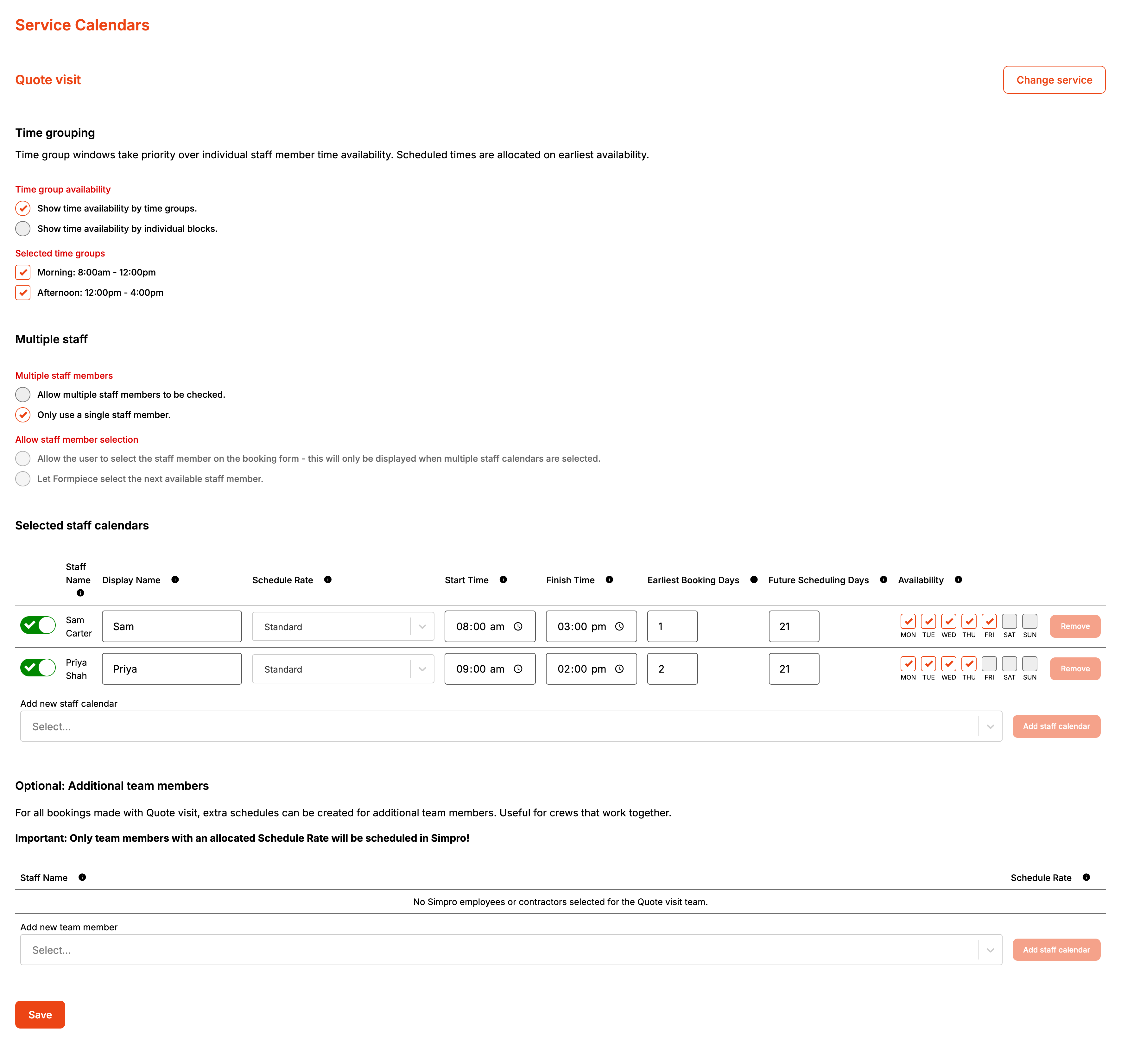
With several staff on one service, the form combines them. A date is offered if anyone works that day. Times run from the earliest Start Time to the latest Finish Time, then each one is checked against each person's own hours and their Simpro schedules that day. The largest Earliest Booking Days and Future Scheduling Days apply to the whole service.
Fields turn red on a row that is on but is missing its hours, days or schedule rate, or finishes before it starts. Save doesn't stop you saving it.
How it maps to Simpro
| Setting | In Simpro |
|---|---|
| The staff calendar booked | The staff member on the lead schedule |
| Schedule Rate | The schedule rate on the lead schedule |
| The date and time booked | The lead schedule's date, start and end time |
| Additional team member | A second schedule on the same lead with the same date and times, the team member's Schedule Rate and the service's Schedule Notes |
| Display Name, hours, days, time grouping, staff options | Nothing. They decide what the form offers |
Team members' own schedules aren't checked, so they can be booked over existing work.
When it goes wrong
Bookings arrive with no schedule in Simpro
The staff member booked has no Schedule Rate. Formpiece skips the schedule without recording an error. If Simpro refused the schedule instead, the enquiry's Schedule field under Integration is empty and Failed notifications recipients get Simpro's reason. A customer who didn't pick a time also gives you a lead with no schedule.
The service doesn't appear on the form
No staff calendar for it is switched on.
More than one row is on with a single staff member
Switching a row on switches the others off, but their switches don't change on screen until you reload the page. Reload after saving. If two rows are still on, the form offers times for both and books whoever is free first.
Save doesn't respond
The service has never had a staff calendar. Add one first, then save.
A service shows old settings, or a new service is missing
The service buttons come from when the page opened. Reload the page after saving one service before you work on another, and after adding a service under Services.
A visit runs past a staff member's finish time
With individual times and several staff, someone who finishes earlier than the others can be booked to start right at their Finish Time. Give staff on the same service the same Finish Time if that matters. With one staff member, or with time groups, the visit always ends by Finish Time.
Customers book a time that has already passed today
With individual times and Earliest Booking Days at 0, the form doesn't hide times earlier
today. Set it to 1 to start from tomorrow.