Collect customer details and match repeat customers in Simpro
Customer Fields decides what the form asks about the person making the enquiry. Formpiece uses the answers to find the customer in Simpro, or create one, before it makes the site and lead. On the form these fields sit under "Contact Details". Rename it under Styles, then Headings and labels, then Customer Contact Details: Title.
Before you start
- The form needs a Simpro company on its Properties page. Until it has one, Customer Fields is missing from the form's menu.
- Customer custom fields need a Lead form subscription. Without one the Custom fields section is greyed out and says "Customer custom fields are only available to Lead form subscribers."
- Matching a repeat customer by email also needs a subscription. Without one, every enquiry creates a new customer in Simpro.
- Customer custom fields are read live from the form's Simpro company. Create them in Simpro first.
Step by step
- Open your form from Forms. If it opens in Form UI, switch to Config. Then open Settings, then Customer Fields.
- Under Standard fields, switch on each field the form should ask for.
- Tick Mandatory field on each one the customer has to fill in. The box only ticks once the field is switched on.
- Under Custom fields, switch on the customer custom fields the form should ask for, and tick Mandatory field where needed.
- Click Save.
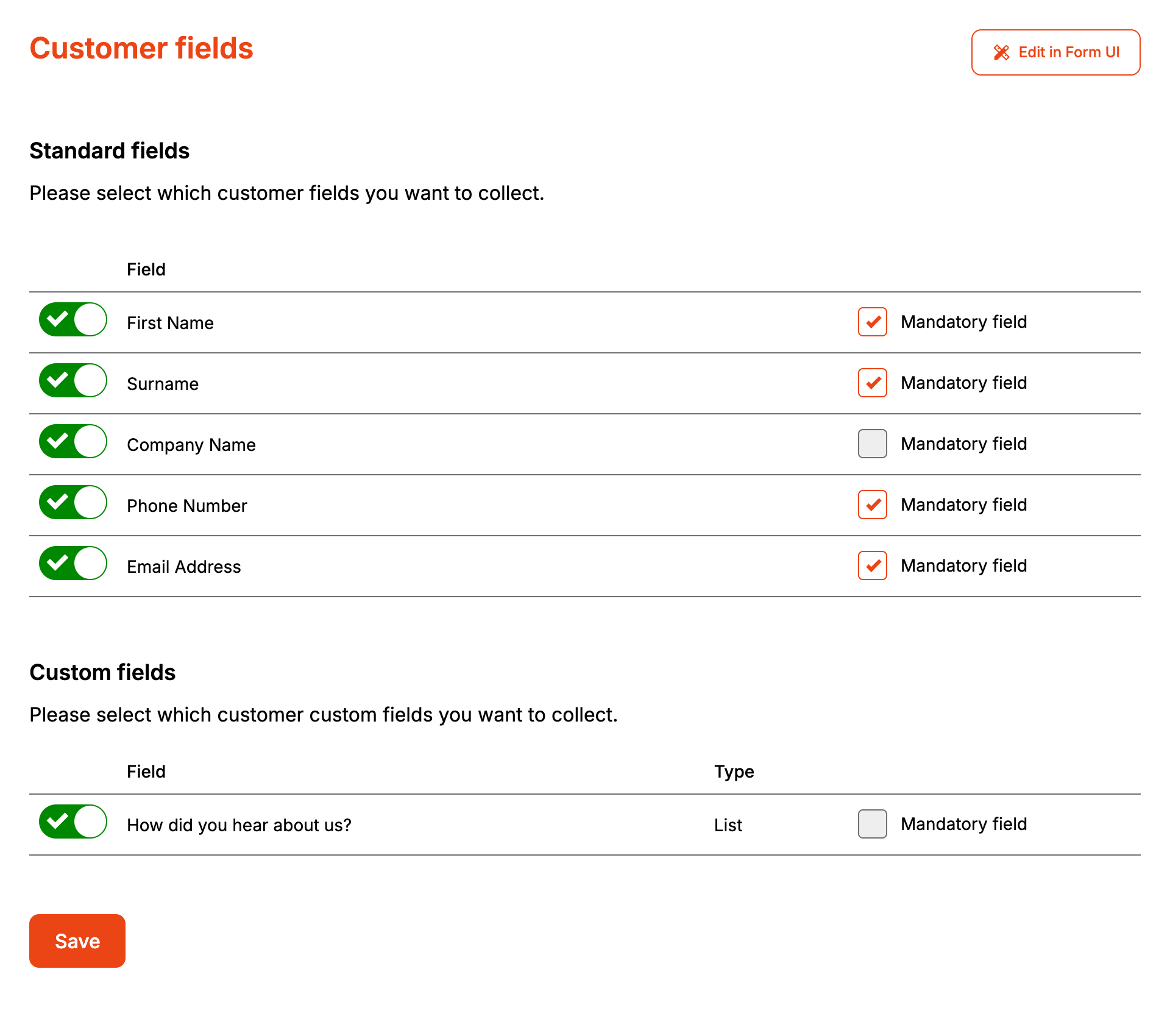
Saving publishes the form, so the next enquiry uses the new fields.
Company Name doesn't put a company box straight on the form. It adds a switch, "I am making a booking for a company.", and the "Company Name" box appears when the customer turns it on.
The form shows Text, List, Date, Numeric and Hyperlink custom fields. A Numeric field takes digits only. A custom field of any other type is left off the form.
How it maps to Simpro
Formpiece first works out which customer the lead belongs to.
- With a subscription and an email address, it looks in the company for a customer with that email and uses the first one Simpro returns. That customer's details stay as they are. Only its custom fields take the new answers.
- Otherwise it creates a customer: a company customer when the customer entered a company name, an individual customer when they didn't.
A company customer also gets a contact for the person who filled in the form. With a subscription, Formpiece looks among that company's contacts for one with the same email and uses it. Otherwise it adds a new contact. Individual customers get no contact.
| On the form | New individual customer | New company customer |
|---|---|---|
| First Name | Given name | The contact's given name |
| Surname | Family name | The contact's family name |
| Company Name | Not used | Company name |
| Phone Number | Phone | Phone, and the contact's work phone |
| Email Address | Email, and the contact's email | |
| Custom fields | Customer custom fields | Customer custom fields |
Custom fields are written on every enquiry, to a matched customer as well as a new one.
If Simpro refuses to create the customer, nothing else is created, and Simpro's reason shows on the enquiry under Enquiries. If it refuses the contact, the lead is still made against the company without one. The enquiry page only lists errors for enquiries that never became a lead, so a refused contact doesn't show there.
When it goes wrong
The form won't get past Contact Details
The address section and the "Confirm enquiry" button wait until every mandatory contact field has an answer, including mandatory list custom fields. With Company Name mandatory, every customer has to turn on "I am making a booking for a company." and enter a company name, so every enquiry becomes a company customer. Leave Company Name optional unless you only work for companies.
Repeat customers are duplicated in Simpro
Without a subscription, Formpiece never looks for an existing customer. With one, it matches on email only, so a customer who leaves the email blank or uses another address gets a new record. Make Email Address mandatory so every enquiry has something to match on.
A repeat customer's new phone number isn't in Simpro
A matched customer is used as it is. Formpiece doesn't change the name, phone or email Simpro already holds for them. Only customer custom fields are updated.
They entered a company but the lead is on an individual customer
When the email matches an existing customer, that customer is used whatever its type. The company name typed on the form is ignored.
A company customer has no contact on the lead
Simpro refused the new contact. The lead is still created against the company. The enquiry page doesn't list errors for an enquiry that became a lead, so the reason isn't shown there.
A list custom field is missing new options
Formpiece copies a list field's options, and the field's name, from Simpro when you switch the field on or change Mandatory field. Options added in Simpro after that don't reach the form. Switch the field off and on again, then click Save.
Customer custom fields are greyed out
They need a Lead form subscription. If the subscription ends, the form keeps showing them until it is next saved, but Formpiece stops writing the answers to Simpro straight away. It also stops matching repeat customers.