Create your first Simpro lead form
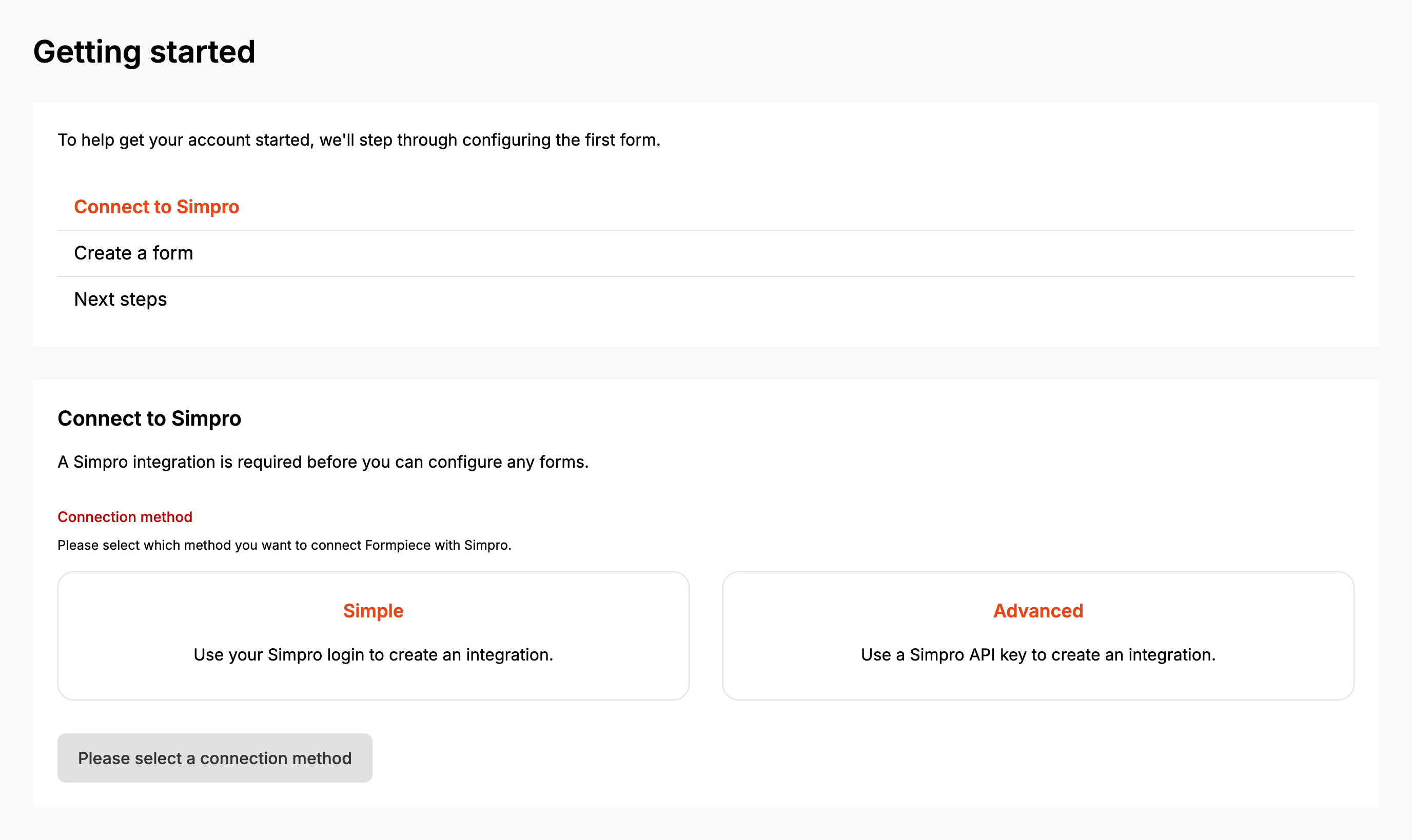
Until the account has a lead form and a Simpro credential set for lead forms, the lead form Dashboard shows Getting started in its place. Forms shows it too while there are no forms. If lead forms already have a Simpro credential, it opens at Create a form.
Before you start
- For Advanced, you need your Simpro build URL and the access token from a Simpro API application (Connecting Simpro with Formpiece).
- For Simple, you need a Simpro login for your build.
Step by step
-
Open the Simpro lead form Dashboard.
-
Under Connection method, click Simple to use your Simpro login, or Advanced to use a Simpro API key.
-
Simple: type your build into Simpro Build URL and pick
.simprosuite.comor.simprocloud.comnext to it. Forhttps://harbourside.simprosuite.com, typeharbourside. -
Simple: click Log in to Simpro, click OK, and sign in to Simpro. You come back to Create a form.
-
Advanced: enter the full Simpro Build URL and the Simpro API Token, then click Test connection.
-
Advanced: when it says "Simpro credentials test successful.", click Save credentials.
-
On Create a form, enter a Form Name of at least five characters. It is the heading customers see on the form, and you can change it later.
-
Pick the Simpro Company leads should be saved to.
-
Check Default Timezone. It starts on your browser's timezone. Follow-up dates and date custom fields on new leads are counted in it.
-
Click Create. It stays greyed out until all three are filled in.
-
On Next steps, click Continue to editing your form.
-
On the form's Properties, make sure Company is set, pick the Default Cost Centre, then click Save. The rest of the form's settings and its other tabs appear once it is saved with a company.
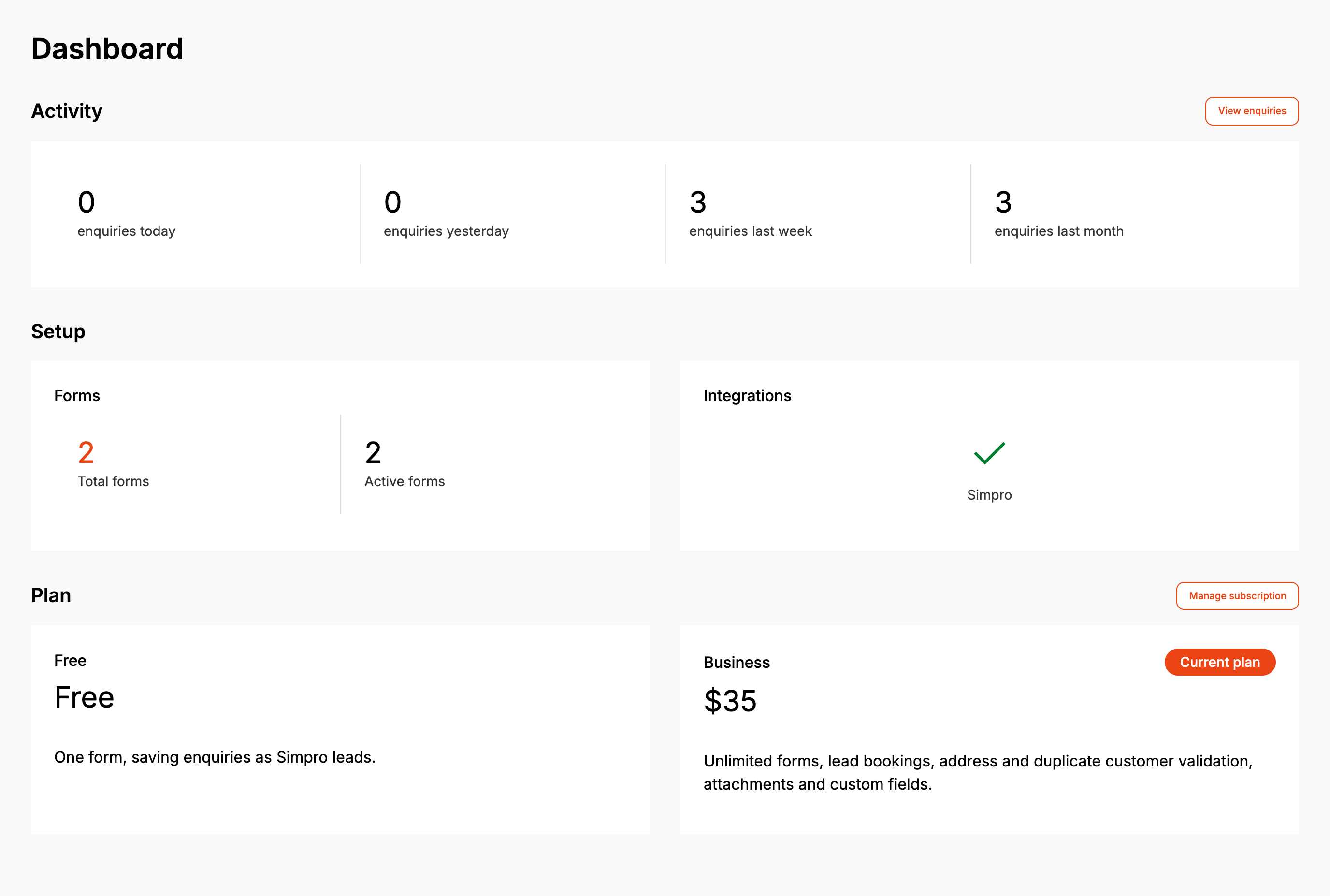
From then on Dashboard shows the account at a glance. Activity counts enquiries since midnight today, yesterday, the last seven days and the last month, so the week and month figures include today. Active forms counts forms that have ever taken an enquiry. The Simpro tick under Integrations means a credential is set for lead forms. It doesn't test the connection.
When it goes wrong
"Could not verify the Simpro credentials"
Test connection asks Simpro for your companies with the Build URL and token you entered, and none came back. Check the Build URL is your full build address and the token is the access token from your Simpro API application. Save credentials still appears after a failed test, but saving then leaves the Simpro Company list on the next step empty.
An error shows after logging in to Simpro
Simpro refused the sign-in and the page shows Simpro's reason, or "Could not connect to Simpro." Click Simple again and check the build name and the domain before logging in.
Create stays greyed out
The Form Name is under five characters, or Simpro Company or Default Timezone is empty. An empty Simpro Company list means Simpro returned no companies for the credential. Test it on Simpro Credentials.
Getting started is still showing after you created the form
Reload the page. View dashboard on Next steps doesn't always pick up the new Simpro credential until the page loads again.
FAQ
I already connect Simpro for Formpiece booking forms. Do I connect again?
No. Pick that credential on Settings, then Simpro Credentials, and click Update Simpro credentials. Getting started then opens at Create a form. Going through Advanced instead fills in the existing credential's details, and Test connection saves over it.